Custom domains
On this page
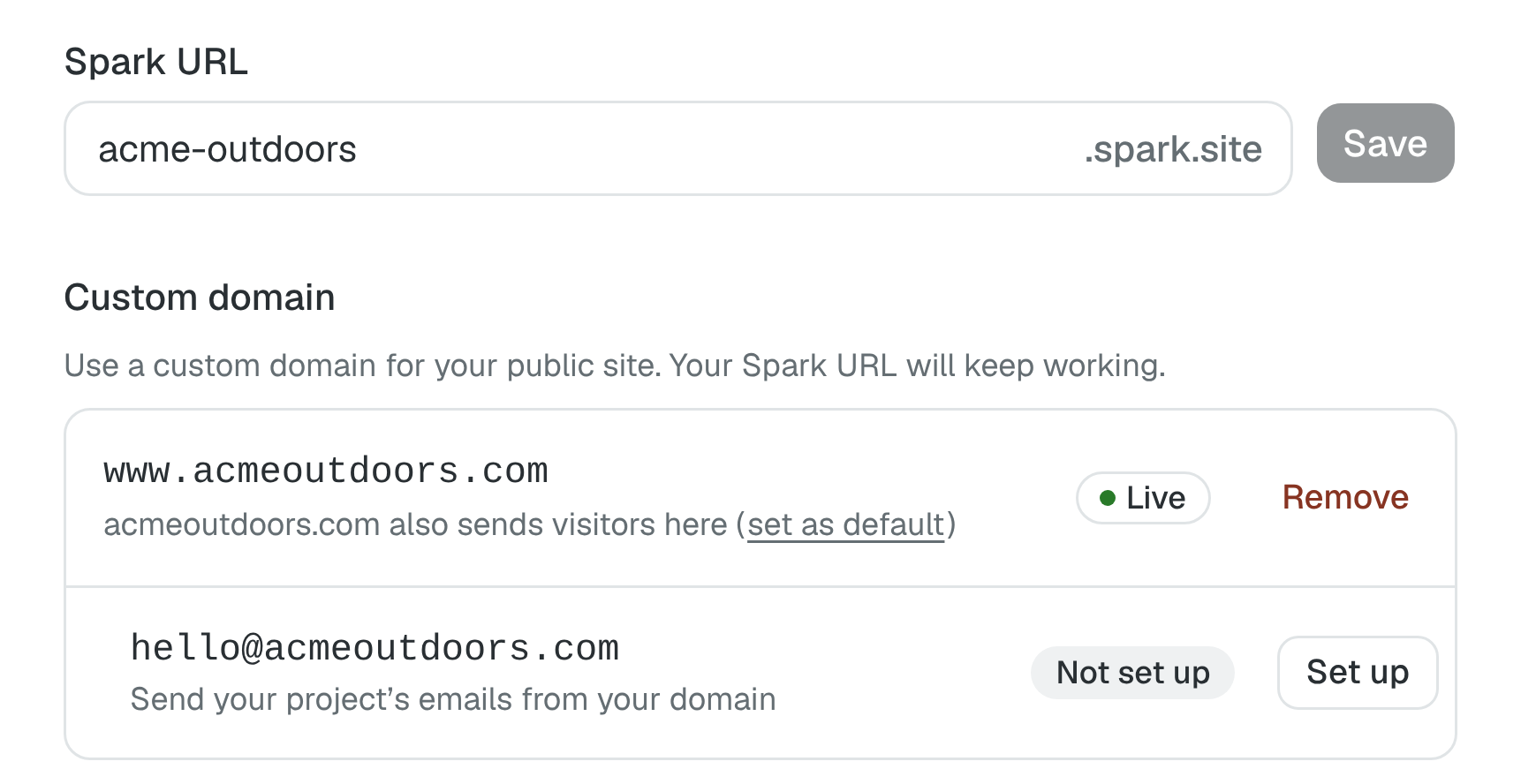
Your public site starts with a Spark URL such as yourname.spark.site. You can connect a domain you own, such as yourbusiness.com, from Project settings → Domain. If you don’t have one yet, see How to buy a domain.
Connect a domain
Setup takes about 10 minutes. You’ll need to sign in wherever your domain’s DNS is managed, which is usually the company you bought the domain from.
- Open Project settings → Domain and choose Connect a domain.
- Enter your domain, such as
yourbusiness.com, and choose Continue. - Spark looks up where the domain is managed. If it recognizes the provider, it shows the steps for that provider, with a link to choose a different one. Otherwise, choose the provider yourself. Spark has steps written for GoDaddy, Namecheap, Squarespace, Cloudflare, Hostinger and Amazon Route 53. For any other provider, choose Somewhere else.
- Choose I’ll set it up. If someone else looks after your domain, choose Send the steps to someone else instead.
- Follow the steps one at a time. Each step shows the values to copy, using the field names your provider uses.
Spark then checks your records and shows what it found for each one. This usually takes 10 to 30 minutes, and you can close the window while it checks. HTTPS is set up for you. When everything is ready, the domain shows Live in Project settings, and Spark emails you to say your site is live.
Your site must also be published before visitors can see it.
What Spark sets up
Your site’s address starts as the www version of your domain, such as www.yourbusiness.com, and visitors who type yourbusiness.com are sent there. You can switch the two once your site is live.
The steps ask for three changes at your provider:
- A CNAME record that points
wwwat Spark. - A TXT record that proves the domain is yours.
- A way for
yourbusiness.comto reach your site. At GoDaddy, this is GoDaddy’s own forwarding to yourwwwaddress. At other providers, the steps show the records to add.
Your Spark URL keeps working alongside your custom domain.
Use your domain without www
To make yourbusiness.com your site’s address instead of www.yourbusiness.com, publish your site and wait until both addresses work. Then, in Project settings → Domain, choose set as default at the end of the line under your domain. Visitors who type www.yourbusiness.com are sent to yourbusiness.com from then on.
Choose set as default again to switch back.
This option isn’t offered when GoDaddy forwards yourbusiness.com, since that forwarding can only send visitors to the www address.
If someone else manages your domain
Choose Send the steps to someone else, copy the steps, and send them to whoever manages the domain. The steps are plain text written for your provider, so they don’t need a Spark account.
After you choose I’ve sent them, Project settings shows that Spark is waiting for the records. Spark keeps checking on its own. You don’t need to come back when they’re done.
If setup isn’t finished
Setup isn’t finished means you closed the steps before the end. Choose Continue setup to pick up where you left off.
Setting up means Spark is checking your records. Choose View progress to see each record and whether Spark has found it, or to see the steps again. Choose Check again after you change a record. If it stays this way for a while:
- Check that you added the records where your domain’s DNS is actually managed.
- If a record with the same name already existed, edit it rather than adding a second one.
DNS changes can take time to appear, so a correct setup may still show Setting up for a while. Once Spark has found your records, it shows that it’s setting up HTTPS, which can take a little longer.
Needs attention means Spark found a record that’s set up wrongly. Choose Fix records to see which record it is and what to change. The usual causes:
- Wrong name. Some providers add your domain to the end of a record’s name automatically, so the name ends up with your domain in it twice. Enter only the part Spark shows, such as
wwwor_spark-verify. - Different value. The record exists but has a different value, often from a previous website. Change it to the value in the steps.
If a record stays set up wrongly, Spark emails you to say which one to fix. If it can’t connect the domain within 3 days, it emails you that too.
If the domain isn’t connected
If the domain can’t be connected, it shows Not connected with the reason:
- Spark couldn’t find the records within 3 days. Check your records, then choose Try again to see the steps again. The values stay the same, so the records you already added still count.
- In use by another project in your organization, or In use by another Spark account. A domain can be connected to only one project at a time. Choose See how to fix. For a project in your organization, choose Open other project, remove the domain there, then come back and choose Try again. For another account, the domain has to be removed from that account first.
- Another website service is using this address. The domain is still connected to a service you used before. Remove it there, then choose Try again.
- Spark couldn’t set up HTTPS for this address. Check your records, then choose Try again.
- Something went wrong on Spark’s side. Choose Email support, and we’ll look into it.
Send email from your domain
Once your site is live on your domain, Project settings shows an email address on it, such as hello@yourbusiness.com. Choose Set up to send your project’s emails from that address. See Send email from your own domain.
Remove a domain
Choose Remove next to your domain and confirm. Your site stops opening at your domain, and your Spark URL keeps working. Afterwards, you can delete the records you added at your provider.
Change your Spark URL
On the same Domain page, edit Spark URL, choose Save, and read the confirmation.
Changing this address breaks links to the old address and signs customers out. Update any links you’ve shared. Changing only the project name in General settings leaves the URL unchanged.