Publishing your project
On this page
Spark builds changes to your public site in a preview. Publishing makes those changes available at your Spark URL and any connected custom domain.
You can publish on any plan. On the Free plan your site is live at its Spark URL with a Built with Spark badge; a paid plan adds a custom domain, payments and a site without the badge. If your plan ends, the site stays published at its Spark URL.
Check the preview
Open Public site and use the Pages list to move through your site. Try the desktop, tablet, and phone controls above the preview.
Before publishing, check:
- Your business details, prices, and contact information are correct.
- Navigation and buttons lead where you expect.
- Text and images work on a phone.
- Any sign-in, booking, or purchase flow behaves as intended.
Treat actions involving customer data or connected services with care. A preview is a place to review your site; it doesn’t mean every action is simulated. Where Preview as is available, use it to check different customer states.
Publish your public site
- Wait for Spark to finish the changes you’re reviewing.
- Choose Publish at the top of the public site.
- Review the confirmation, including the destination and listed changes.
- Confirm Publish, then open the live address to check the result.
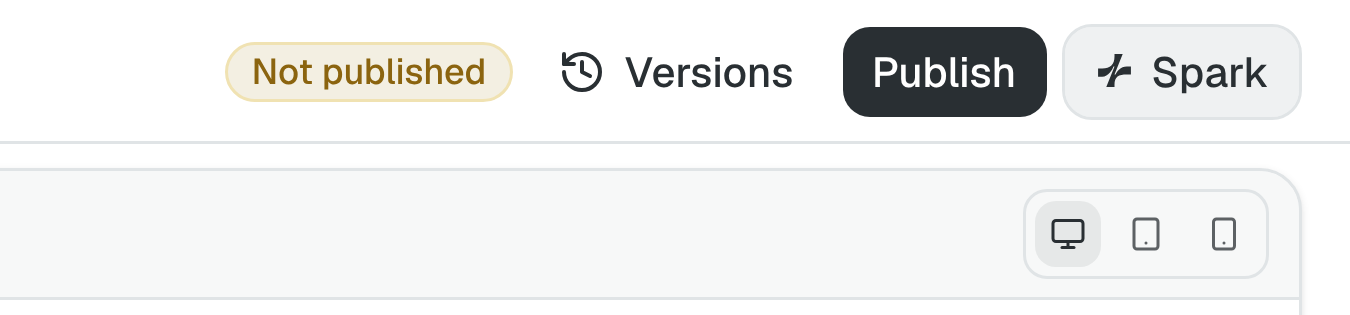
Publishing applies to the public site as a whole, including changes on other pages. Check all pending work before confirming. If there are pending changes to your site’s AI knowledge, those are included too.
After your first publish, you can keep working in the preview while visitors use the published version. Share your Spark URL with customers, or connect a custom domain.
Restore an earlier version
Open Versions to review the site’s changes and published history. Find the published version you want, choose Restore, and review the confirmation before proceeding.
Restoring replaces the live site with that version. It doesn’t undo customer transactions or restore business data. The version you’re replacing remains in history.
If a change isn’t live
Check whether the public site still shows unpublished changes. Make sure you published after the last edit and that you’re looking at the live address.
If publishing is unavailable, check whether Spark is still working or waiting for your response, then check your plan and any billing notice.
If the whole site shows a “temporarily unavailable” notice, the site is offline. This happens when a Spark invoice is unpaid (see If a payment fails) or when Spark has suspended the account, in which case contact support. An ended plan doesn’t take the site offline: it stays published at its Spark URL.
Internal tools
Internal tools work inside Spark. Their changes apply when Spark finishes, without a separate Publish step. Use the Undo action on an applied change or the tool’s history to return to an earlier version.