Getting started
On this page
Spark helps you build a website or app by describing what you want. You work with Spark in a chat, review the result in a preview, and publish when you’re ready.
Start a project
Open Spark and sign in. If you already have a project, open the project menu at the top of the navigation and choose New project….
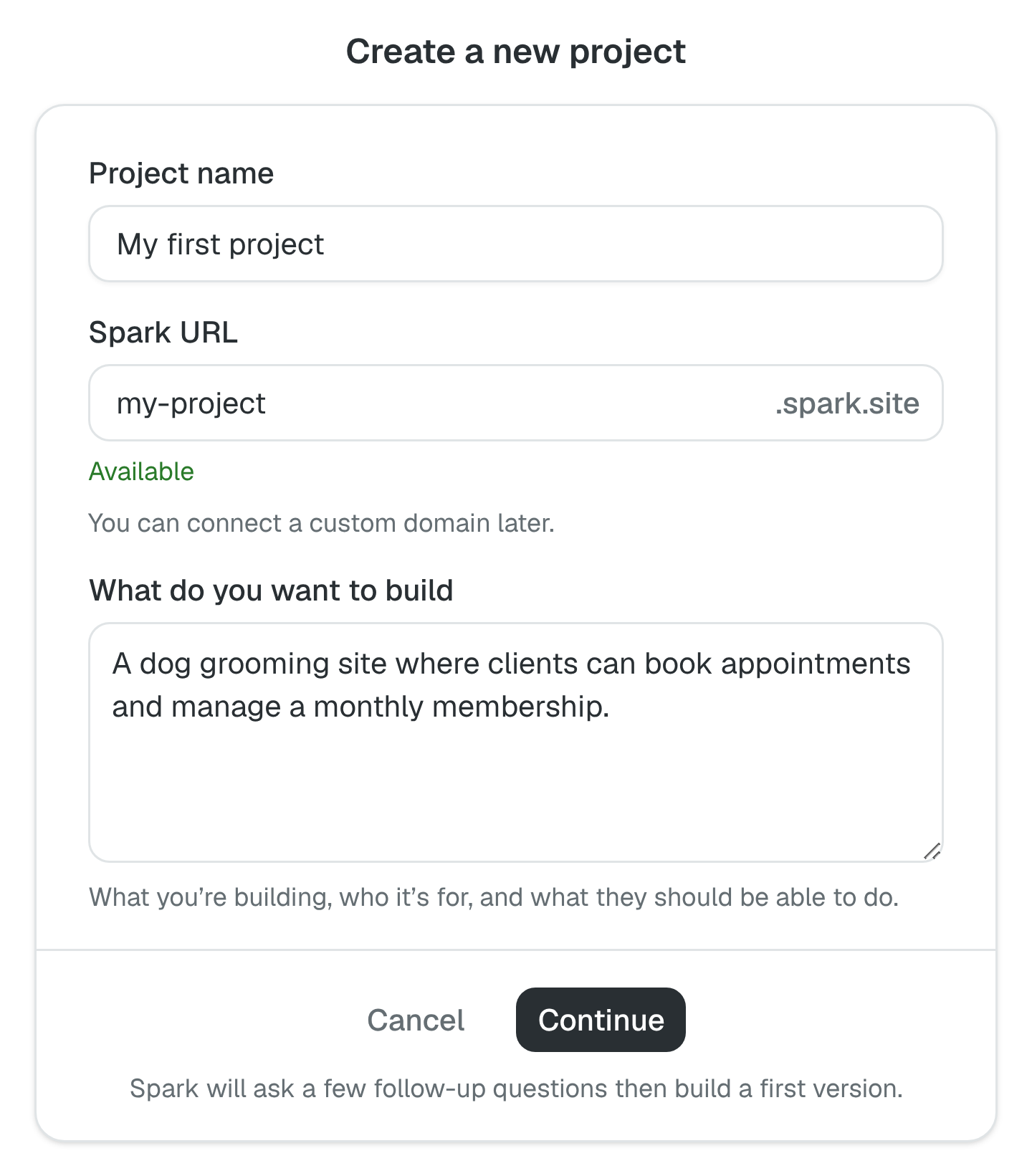
Enter a Project name, choose a Spark URL, and describe What do you want to build. Include who it’s for and what people should be able to do.
A site for my dog grooming business. Customers should be able to see our services, request an appointment, and learn about our monthly membership. Use a friendly tone and make it easy to use on a phone.
If you started from the box on the spark.site home page, what you typed there is already in What do you want to build. Review it, add to it, or replace it.
Not sure what to build yet? Choose Help me find an idea under the description box. Spark asks a few questions about what you do and who you’d like to help, then suggests three ideas. Pick one and Spark plans it with you. The project takes its name and Spark URL from the idea you choose, and you can change both before you start building.
Your Spark URL will look like yourname.spark.site. You can connect your own domain later.
Make a plan with Spark
Choose Continue. Spark asks follow-up questions and proposes a plan. Explain what matters for the first version, correct anything it misunderstood, and say what can wait.
When the plan looks right, choose Start building. You’ll then have the chance to add your brand. If your plan includes AI features, Spark also asks for the instructions or reference material those features need.
You don’t need to have every detail ready. Tell Spark what is still undecided so you can return to it later.
If you reload the page, the conversation is still there for up to a day, as long as you stay in the same browser tab.
Open your first preview
Spark starts building from your plan. The setup screen shows its progress; choose Open project when the first preview is ready. Spark may still have more of the plan to finish.
Your project contains a Public site with a list of its pages. Internal tools, when you add them, are private tools for running your business inside Spark. Payments and Project settings sit in the navigation below them.
Open the Spark panel to continue the conversation. Tell it what you’d like to change, then check the next preview. Your public site stays unpublished until you decide to take it live.
What to do next
- Learn how to give useful requests in Using the Spark agent.
- Check your site and take it live with Publishing your project.
- If you want to charge customers, follow Sell with Spark.